[Using GCP] Stackdriver Third-party Appication Monitoring (6.PostgreSQL)

글쓴이 : 윤성재 (공작명왕)
E-mail : <gongjak@gmail.com>
Facebook : < https://www.facebook.com/sungjae.yun >

PostgreSQL Plugin

1.PostgreSQL 설치와 시작

< Debian 8 >

sudo apt-get install postgresql

< CentOS 7 >

sudo yum install postgresql-server postgresql-contrib
sudo postgresql-setup initdb
sudo systemctl start postgresql

2.사전 준비

모니터링을 위해 DB 사용자를 추가해줘야 한다. ID와 Password는 반드시 수정해서 입력하길 바란다.

sudo su - postgres
psql
postgres=# CREATE ROLE stackuser LOGIN PASSWORD ‘stack1234’ SUPERUSER;
postgres=# \q

pg_hba.conf 파일에 앞에 생성한 stackdriver 유저로 접근할 수 있도록 접근 권한을 줘야 한다. 다음 내용을 추가해준다.

< Debian 8 >

/etc/postgresql/9.4/main/pg_hba.conf

host all stackuser 127.0.0.1/32 md5

< CentOS 7 >

/var/lib/pgsql/data/pg_hba.conf

host all stackuser ::1/128 md5
host all stackuser 127.0.0.1/32 md5

postgresql 서버를 재기동 한 후, 잘 접속 되는지 확인해본다.

psql -U stackuser -W -h localhost -d postgres

3.Plugin 설치

cd /opt/stackdriver/collectd/etc/collectd.d/ && sudo curl -O https://raw.githubusercontent.com/Stackdriver/stackdriver-agent-service-configs/master/etc/collectd.d/postgresql.conf

postgresql.conf 파일을 열어서 다음 내용으로 수정해준다.

DATABASE_NAME ==> postgres
#Host "localhost" ==> Host "localhost"
STATS_USER ==> stackuser
STATS_PASS ==> stack1234

4.Stackdriver Agent 재시작

< Debian 8 >

sudo service stackdriver-agent restart

< CentOS 7 >

sudo systemctl restart stackdriver-agent

5.Monitoring 확인

Monitoring -> Resources -> Instances

각 서버를 클릭해보자. stackdriver agent가 plugin이 정상으로 동작하여 정보를 제대로 가져온다면 Monitoring의 오른쪽 그래프 윗부분에서 다음과 같은 화면을 볼 수 있다.
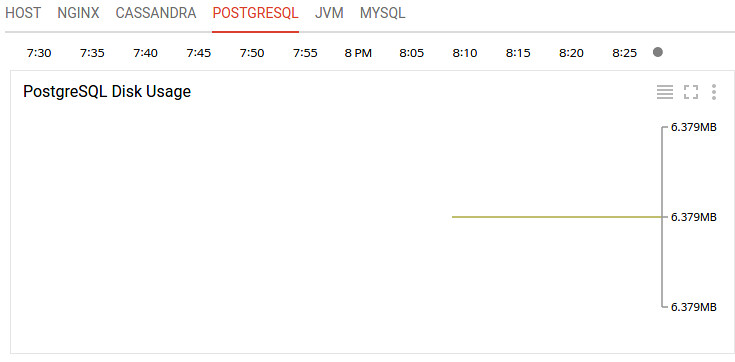
stackdriver-2-image00

[ 출처: Flickr, gongjak1 ]

6.현재 모니터링 가능한 항목

  • Connections (count): Number of connections to PostgreSQL.
  • Disk Usage (byte): Number of bytes currently being used on disk.
  • Commits (count/s): Number of commits per second.
  • Rollbacks (count/s): Number of rollbacks per second.
  • Heap Blocks Read Rate (count/s): Number of blocks read from the heap.
  • Heap Cache Hit Rate (count/s): Number of blocks read directly out of the cache.
  • Index Blocks Read Rate (count/s): Number of blocks read from the index.
  • Index Cache Hit Rate (count/s): Number of index blocks read directly out of the cache.
  • Toast Blocks Read Rate (count/s): Number of reads from the toast blocks.
  • Toast Cache Hit Rate (count/s): Number of toast blocks read directly out of the cache.
  • Toast Index Blocks Read Rate (count/s): Number of blocks read from the toast index.
  • Toast Index Cache Hit Rate (count/s): Number of toast index blocks read directly out of the cache.
  • Operations [delete, insert, update, heap only update] (count/s): Number of rows [deleted, inserted, updated, heap only updated] in the db.
  • Dead Tuples (count): Number of tuples that are dead in the db.
  • Live Tuples (count): Number of tuples that are live in the db.

[Using GCP] Stackdriver Third-party Appication Monitoring (5.NginX)

글쓴이 : 윤성재 (공작명왕)
E-mail : <gongjak@gmail.com>
Facebook : < https://www.facebook.com/sungjae.yun >

Nginx Plugin

1.Nginx 설치와 시작

< Debian 8 >

sudo apt-get install nginx

< CentOS 7 >

sudo yum install epel-release
sudo yum install nginx
sudo systemctl start nginx

2.사전 준비

cd /etc/nginx/conf.d/ && sudo curl -O https://raw.githubusercontent.com/Stackdriver/stackdriver-agent-service-configs/master/etc/nginx/conf.d/status.conf

3.Plugin 설치

cd /opt/stackdriver/collectd/etc/collectd.d/ && sudo curl -O https://raw.githubusercontent.com/Stackdriver/stackdriver-agent-service-configs/master/etc/collectd.d/nginx.conf

4.Stackdriver Agent 재시작

< Debian 8 >

sudo service stackdriver-agent restart

< CentOS 7 >

sudo systemctl restart stackdriver-agent

5.Monitoring 확인

Monitoring -> Resources -> Instances

각 서버를 클릭해보자. stackdriver agent가 plugin이 정상으로 동작하여 정보를 제대로 가져온다면 Monitoring의 오른쪽 그래프 윗부분에서 다음과 같은 화면을 볼 수 있다.

stackdriver-2-image12

[ 출처: Flickr, gongjak1 ]

6.현재 모니터링 가능한 항목

  • Active Connections (count): The number of active connections currently attached to Nginx.
  • Reading Connections (count): The number of reading connections currently attached to Nginx.
  • Writing Connections (count): The number of writing connections currently attached to Nginx.
  • Waiting Connections (count): The number of waiting connections currently attached to Nginx.
  • Requests (count/s): The number of requests per second Nginx is servicing.

[Using GCP] Stackdriver Third-party Appication Monitoring (4.MySQL)

글쓴이 : 윤성재 (공작명왕)
E-mail : <gongjak@gmail.com>
Facebook : <https://www.facebook.com/sungjae.yun&gt;

MySQL Plugin

1.MySQL 설치와 시작

< Debian 8 >

sudo apt-get install mysql-server

< CentOS 7 >

wget http://repo.mysql.com/mysql-community-release-el7-5.noarch.rpm
sudo rpm -ivh mysql-community-release-el7-5.noarch.rpm
sudo yum update
sudo yum install mysql-server
sudo systemctl start mysqld

2.사전 준비

모니터링을 위해 DB 사용자를 추가해줘야 한다. ID와 Password는 반드시 수정해서 입력하길 바란다.

< CentOS 7 >

mysql -u root -p

< CentOS 7 >

mysql -u root

mysql> GRANT SELECT, SHOW DATABASES
ON *.*
TO 'stackdriver'@'localhost'
IDENTIFIED BY 'password';

3.Plugin 설치

cd /opt/stackdriver/collectd/etc/collectd.d/ && sudo curl -O https://raw.githubusercontent.com/Stackdriver/stackdriver-agent-service-configs/master/etc/collectd.d/mysql.conf

다은 받은 파일을 열어서 “STATS_USER”, “STATS_PASS” 를 모니터링을 위해 추가한 DB 사용자 정보로 바꿔준다.

4.Stackdriver Agent 재시작

< Debian 8 >

sudo service stackdriver-agent restart

< CentOS 7 >

sudo systemctl restart stackdriver-agent

5.Monitoring 확인

Monitoring -> Resources -> Instances

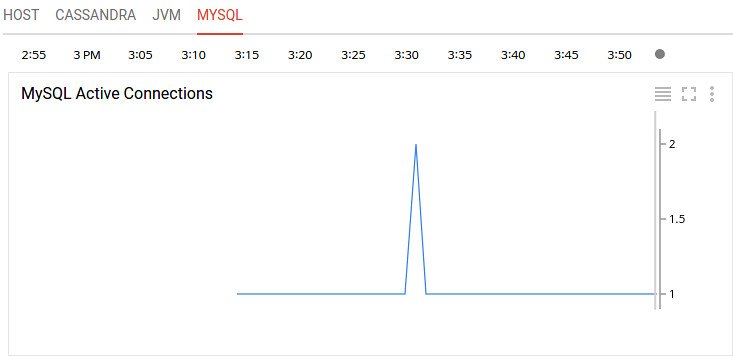
각 서버를 클릭해보자. stackdriver agent가 plugin이 정상으로 동작하여 정보를 제대로 가져온다면 Monitoring의 오른쪽 그래프 윗부분에서 다음과 같은 화면을 볼 수 있다.

stackdriver-2-image06

[ 출처: Flickr, gongjak1 ]

6.현재 모니터링 가능한 항목

  • Connections (count): The number of active connections to MySQL.
  • Select Queries (count): The number of select queries being run.
  • Insert Queries (count): The number of insert queries being run.
  • Update Queries (count): The number of update queries being run.
  • Slave replication lag