[Using GCP] Stackdriver Third-party Appication Monitoring (3.MongoDB)

글쓴이 : 윤성재 (공작명왕)
E-mail : <gongjak@gmail.com>
Facebook : < https://www.facebook.com/sungjae.yun >

MongoDB Plugin

1.MongoDB 설치와 시작

< Debian 8 >

sudo apt-get install mongodb

< CentOS 7 >

sudo yum install mongodb-server mongodb
sudo systemctl start mongod

2.사전 준비

모니터링을 위해 clusterMonitor Role를 가진 유저를 admin database에 생성해준다. db.auth 명령어에서 “1”이 나오면 정상으로 인증에 성공한 것이다.

< Debian 8 >

mongo
> use admin
> show users;
> db.addUser("stackuser","stack1234","clusterMonitor");
> db.auth("stackuser","stack1234");
1
> exit

< CentOS 7 >

mongo
> use admin
> show users;
> db.createUser( { user: "stackuser", pwd: "stack1234", roles: ["clusterMonitor"] } )
> db.auth("stackuser","stack1234");
1
> exit

3.Plugin 설치

cd /opt/stackdriver/collectd/etc/collectd.d/ && sudo curl -O https://raw.githubusercontent.com/Stackdriver/stackdriver-agent-service-configs/master/etc/collectd.d/mongodb.conf

mongodb.conf 파일을 열어 STATS_USER, STATS_PASS 의 주석처리(“#”)을 지워주고, 앞에서 생성한 유저의 ID와 Password로 바꿔준다.

4.Stackdriver Agent 재시작

< Debian 8 >

sudo service stackdriver-agent restart

< CentOS 7 >

sudo systemctl restart stackdriver-agent

5.Monitoring 확인

Monitoring -> Resources -> Instances

각 서버를 클릭해보자. stackdriver agent가 plugin이 정상으로 동작하여 정보를 제대로 가져온다면 Monitoring의 오른쪽 그래프 윗부분에서 다음과 같은 화면을 볼 수 있다.
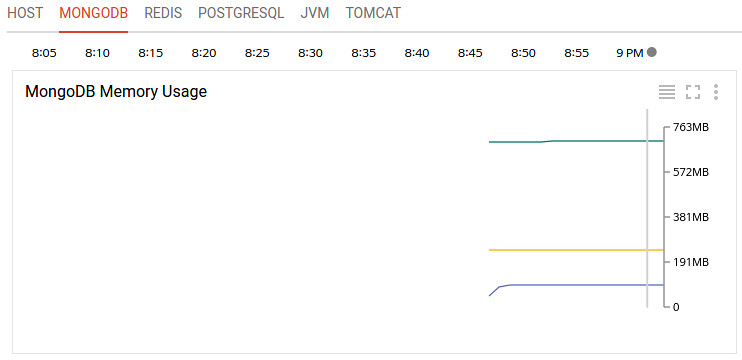
stackdriver-2-image04

[ 출처: Flickr, gongjak1 ]

6.현재 모니터링 가능한 항목

  • Current Connections (count): The number of active connections to MongoDB.
  • Global Lock Hold Time (ms): How long the global lock has been held.
  • Mapped Memory (bytes): The amount of mapped memory used by MongoDB. This is roughly equivalent to the total size of your database, due to the use of memory mapped files.
  • Virtual Memory (bytes): The amount of virtual memory used by MongoDB. If the virtual memory size is significantly larger than mapped memory size (e.g. 3 or more times), this may indicate a memory leak.
  • Resident Memory (bytes): The amount of resident memory that is used by MongoDB. This is the amount of RAM being physically used by the database.
  • Operations [command, delete, getmore, insert, query, update] (count/s): The number of [command, delete, getmore, insert, query, update] operations executed per second.
  • Database [Collection, Index, Object, Extents] Count (count): The number of [collections, indices, objects, extents] currently in the database.
  • Database Data Size (bytes): The size of the data currently in the database.
  • Database Storage Size (bytes): The size of the storage currently allocated to the database.
  • Database Index Size (bytes): The size of the index for the database.

[Using GCP] Stackdriver Third-party Appication Monitoring (2.Cassandra)

글쓴이 : 윤성재 (공작명왕)
E-mail : <gongjak@gmail.com>
Facebook : < https://www.facebook.com/sungjae.yun >

Cassandra Plugin

1.Cassandra 설치와 시작

< Debian 8 >

sudo sh -c "echo 'deb http://www.apache.org/dist/cassandra/debian 37x main' > /etc/apt/sources.list.d/cassandra.list"
sudo sh -c "echo 'deb-src http://www.apache.org/dist/cassandra/debian 37x main' >> /etc/apt/sources.list.d/cassandra.list"
gpg --keyserver pgp.mit.edu --recv-keys 749D6EEC0353B12C
gpg --export --armor 749D6EEC0353B12C | sudo apt-key add -
sudo apt-get update
sudo apt-get install cassandra
sudo service cassandra start

참조 : http://wiki.apache.org/cassandra/DebianPackaging

< CentOS 7 >

cassandra 3.x Repository 를 추가해준다.

/etc/yum.repos.d/datastax.repo:
[datastax-ddc]
name = DataStax Repo for Apache Cassandra
baseurl = http://rpm.datastax.com/datastax-ddc/3.7
enabled = 1
gpgcheck = 0

설치하고 시작해준다.

sudo yum install java-1.8.0-openjdk datastax-ddc
sudo /etc/init.d/cassandra start

참조 : http://docs.datastax.com/en/cassandra/3.x/cassandra/install/installRHEL.html

2.사전 준비

노드가 정상 작동중인지 확인한다.

nodetool status

stackdriver-2-image02

[ 출처: Flickr, gongjak1 ]

Cassandra 는 JMX 를 통해서 모니터링을 하기에, Cassandra에 JMX 설정이 되어야만 하는데, 다행히 localhost 호스트에서의 JMX 설정은 되어 있는 상태이며 기본 포트는 7199이므로 다음 명령어로 확인할 수 있다.

netstat -na| grep 7199

stackdriver-2-image08

[ 출처: Flickr, gongjak1 ]

3.Plugin 설치

cd /opt/stackdriver/collectd/etc/collectd.d/ && sudo curl -O https://raw.githubusercontent.com/Stackdriver/stackdriver-agent-service-configs/master/etc/collectd.d/cassandra-22.conf

4.Stackdriver Agent 재시작

< Debian 8 >

sudo service stackdriver-agent restart

< CentOS 7 >

sudo systemctl restart stackdriver-agent

5.Monitoring 확인

Monitoring -> Resources -> Instances

각 서버를 클릭해보자. stackdriver agent가 plugin이 정상으로 동작하여 정보를 제대로 가져온다면 Monitoring의 오른쪽 그래프 윗부분에서 다음과 같은 화면을 볼 수 있다.

stackdriver-2-image16

[ 출처: Flickr, gongjak1 ]

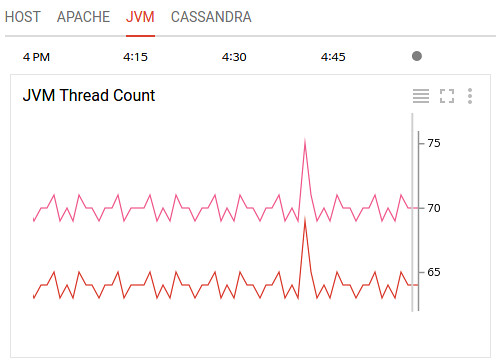
Cassandra는 JVM 기반으로 동작하기에 친절한 Stackdriver는 JVM 모니터링까지 함께 할 수 있게 자료를 수집해서 보여준다.

stackdriver-2-image18

[ 출처: Flickr, gongjak1 ]

6.현재 모니터링 가능한 항목

JVM

  • Active JVM Threads
  • JVM Heap memory usage
  • JVM Non-Heap memory usage
  • JVM Open File Descriptors
  • JVM Garbage Collection Count

Cassandra

  • Storage Load: The amount of data stored on each Cassandra node.
  • Pending Tasks: The number of basic task stages waiting to run.
  • Active Tasks: The number of basic task stages currently running.
  • Blocked Tasks: The number of basic task stages blocked from running.
  • Pending Internal Tasks: The number of internal task stages waiting to run.
  • Active Internal Tasks: The number of internal task stages currently running.
  • Cassandra Pending Compactions
  • Cassandra Pending CommitLog

[Using GCP] Stackdriver Third-party Appication Monitoring (1.Apache Httpd)

글쓴이 : 윤성재 (공작명왕)
E-mail : <gongjak@gmail.com>
Facebook : < https://www.facebook.com/sungjae.yun >

Apache Httpd Plugin

1.Apache Httpd 설치와 시작

< Debian 8 >

sudo apt-get install apache2
sudo service apache2 start
sudo service apache2 status

< CentOS 7 >

sudo yum install httpd
sudo systemctl start httpd
sudo systemctl status httpd

웹서버로 직접 접속하여 확인하고자 한다면 방화벽을 열어줘야만 한다.

GCP 콘솔 -> Compute Engine -> VM instance -> 인스턴스 클릭 -> EDIT -> Firewalls -> Allow HTTP traffic 클릭 -> Save

이제 각 인스턴스의 “External IP”로 웹서버에 접속할 수 있다.

2.사전 준비

Apache plugin 중에 mod_status 가 설치되어 있는지 확인한다.

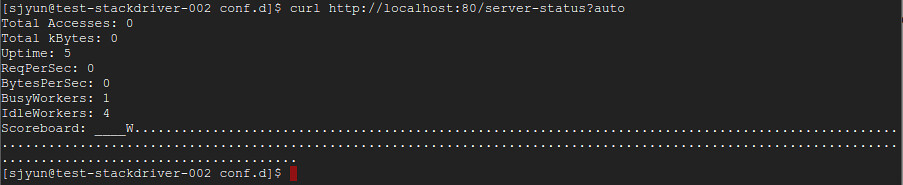
curl http://localhost:80/server-status?auto

stackdriver-2-image17

[ 출처: Flickr, gongjak1 ]

< Debian 8 >

GCP 에서는 status.conf 가 기본으로 설치되므로 잘 된다.

< CentOS 7 >

server-status 가 없어서 404 Not Found 가 나온다. server-status 를 설치해주자.

cd /etc/httpd/conf.d/ && sudo curl -O https://raw.githubusercontent.com/Stackdriver/stackdriver-agent-service-configs/master/etc/httpd/conf.d/status.conf
sudo sed -i s/127.0.0.1:/localhost:/g /etc/httpd/conf.d/status.conf
sudo sed -i s/127.0.0.1/"127.0.0.1 localhost"/g /etc/httpd/conf.d/status.conf
sudo su -c "echo 'LoadModule status_module modules/mod_status.so' > /etc/httpd/conf.modules.d/00-status.conf"
sudo systemctl restart httpd

3.plugin 설치

cd /opt/stackdriver/collectd/etc/collectd.d/ && sudo curl -O https://raw.githubusercontent.com/Stackdriver/stackdriver-agent-service-configs/master/etc/collectd.d/apache.conf

4.Stackdriver Agent 재시작

< Debian 8 >

sudo service stackdriver-agent restart

< CentOS 7 >

sudo systemctl restart stackdriver-agent

5.Monitoring 확인

Monitoring -> Resources -> Instances

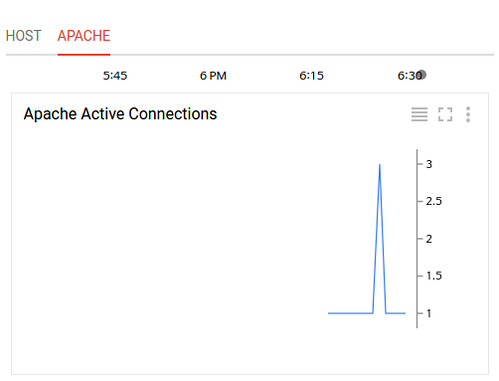
각 서버를 클릭해보자. stackdriver agent가 plugin이 정상으로 동작하여 정보를 제대로 가져온다면 Monitoring의 오른쪽 그래프 윗부분에서 다음과 같은 화면을 볼 수 있다.

stackdriver-2-image20

[ 출처: Flickr, gongjak1 ]

6.현재 모니터링이 가능한 항목

  • Active Connections (count): The number of active connections currently attached to Apache.
  • Idle Workers (count): The number of idle workers currently attached to Apache.
  • Requests (count/s): The number of requests per second serviced by Apache.
  • Scoreboard
  • Traffic